
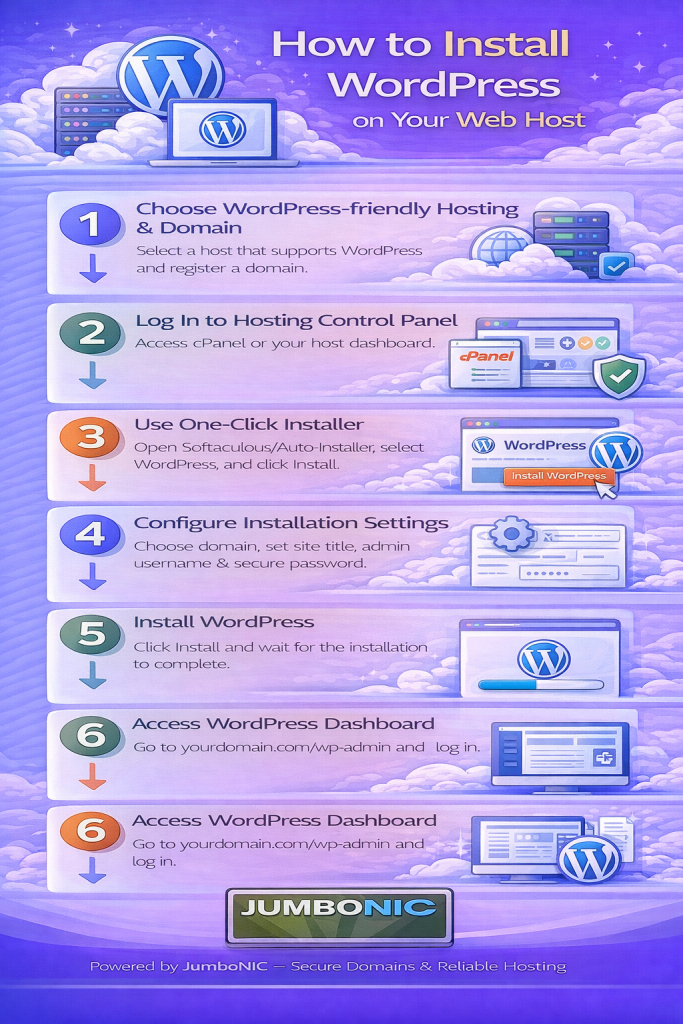
🧩 Step-by-Step Guide: How to Install WordPress on Your Web Host
WordPress is one of the most popular platforms for building websites — and the good news is, you don’t need to know how to code to install or use it.
In this simple step-by-step guide, you’ll learn how to:
Log in to your hosting panel
Create a database
Upload WordPress
Run the WordPress installer
We’ll walk through the process in a simple, beginner-friendly way, especially if you’re hosting your domain through JumboNIC.
✅ Before You Begin
Make sure you already have:
| Requirement | Where It Comes From | Status |
|---|---|---|
| Domain Name | Registered at JumboNIC | ✅ |
| Web Hosting | Any hosting plan (Shared / VPS / Cloud) | ✅ |
| Hosting Login | Provided by your hosting provider | ✅ |
🟦 Step 1: Log in to Your Hosting Control Panel
Most hosting providers use cPanel or a similar interface.
Go to your hosting login URL (from your welcome email)
Enter your username and password
You will now see your hosting control dashboard
This is where you manage your website files, databases, and emails.
🟩 Step 2: Create a Database for WordPress
In your hosting panel, find MySQL Databases
Click Create New Database
Name it something simple like:
wp_site
Then:
4. Create a database user
5. Assign a strong password
6. Assign the user to the database with full permissions
Write these down — you’ll need them in Step 5.
🟦 Step 3: Download WordPress from the Official Website
🟩 Step 4: Upload WordPress to Your Hosting
In cPanel, open File Manager
Go to the folder named:
public_html (This is your main website folder)Click Upload
Select the WordPress .zip file
After upload, Extract the .zip file
🟦 Step 5: Connect WordPress to Your Database
Go to your website in a browser:
https://yourdomain.com
The WordPress Installation Wizard will appear
Enter your database information:
| WordPress Setting | What to Enter |
|---|---|
| Database Name | The one you created (e.g., wp_site) |
| Database Username | The database user you made |
| Database Password | The password you wrote down |
| Database Host | Usually localhost |
| Table Prefix | Leave default (wp_) unless installing multiple sites |
Click Submit → Then click Run the Installation
🟩 Step 6: Create Your WordPress Admin Account
Enter:
| Field | Example |
|---|---|
| Site Title | Your Website Name |
| Username | admin (or something unique) |
| Password | Choose a strong password |
| Your email |
Click Install WordPress.
After a few seconds → Installation is complete 🎉
Login page:
https://yourdomain.com/wp-admin
🏆 Why Hosting Your WordPress Website with JumboNIC Helps SEO & Performance
| JumboNIC Benefit | Why It Matters |
|---|---|
| Fast server performance | Makes your site load faster (strong SEO signal) |
| Reliable uptime | Keeps your site online consistently |
| Security protection | Helps avoid malware & ranking penalties |
| Local server availability | Faster delivery to local users |
| Easy scalability | Supports growth without slowdowns |
🎉 You’re Done!
You now have:
A connected domain
A working hosting environment
WordPress fully installed
Access to your admin dashboard
You’re ready to start:
Installing themes
Adding plugins
Creating pages and posts