
How to Update WordPress, Themes, and Plugins Without Breaking Your Site
Featuring JumboNIC
Keeping your WordPress website updated is essential for:
Security
Speed
Performance
Compatibility
SEO
But many website owners hesitate to update WordPress, themes, or plugins because they worry something might break.
And to be fair—it can happen if updates are done carelessly.
The good news?
You can update safely by following the right steps.
Let’s walk through them.
Why Updates Are Important
| What Updates Fix/Improve | Why It Matters |
|---|---|
| Security vulnerabilities | Prevent hacking and malware attacks |
| Performance optimizations | Faster loading site improves SEO |
| New features | Better site customization and functionality |
| Compatibility support | Keeps everything working smoothly |
Running outdated software is like leaving your front door unlocked.
Step-by-Step: Update WordPress Safely (The Right Way)
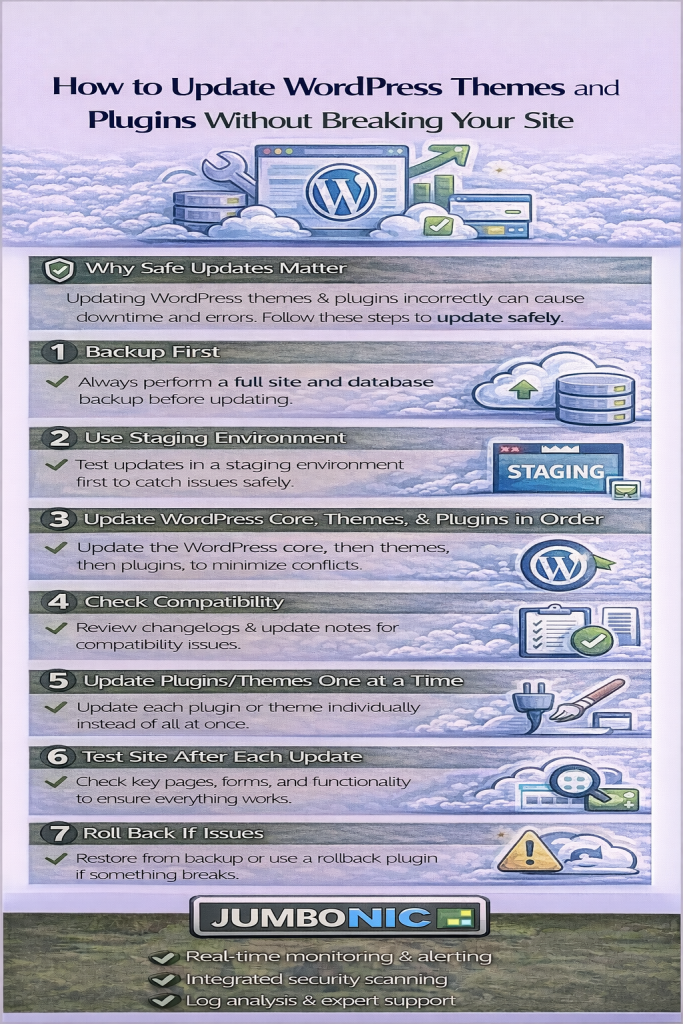
1. Back Up Your Website First
Before you click Update, always create a backup of:
Database
Files
Themes
Plugins
Easy Backup with JumboNIC:
In your hosting panel → Backups → Create Backup
Or use a plugin like:
UpdraftPlus
Jetpack Backup
WPvivid
This ensures you can restore your site if anything goes wrong.
2. Use a Staging Site (If Possible)
A staging site is a private copy of your site where you can test updates safely.
If you followed the previous guide, you already know how to set it up.
With JumboNIC WordPress Hosting, you can create a staging site in one click using:
WordPress Toolkit
Softaculous
Test the updates there first.
If everything looks good → Push to Live.
3. Update in the Correct Order
To avoid conflicts:
Update in this order:
WordPress Core
Themes
Plugins
Why this order?
Because themes and plugins are designed to match the latest WordPress version — not the other way around.
4. Update One Plugin at a Time
Never click “Update All.”
Updating plugins one-by-one allows you to:
Detect which plugin breaks the site
Undo changes easily
After each update:
✅ Refresh your site
✅ Check pages
✅ Test forms / menus / checkout (if needed)
5. Check for Plugin Conflicts
If your site breaks after an update:
Disable the last updated plugin
See if the issue is fixed
If yes → Consider:
Updating the plugin again later
Replacing it with a similar alternative
Contacting the plugin developer
6. Clear Cache After Updating
Cached files may show an outdated version of your site.
Clear:
WordPress cache(plugin cache)
Browser cache
CDN cache (if using Cloudflare, etc.)
This ensures your site shows the latest changes.
Pro Tips to Avoid Breakage
| Tip | Why It Helps |
|---|---|
| Avoid cheap or abandoned plugins/themes | They break more easily |
| Use only trusted WordPress sources | Better security & reliability |
| Update during low-traffic hours | Reduces impact if problems occur |
| Keep PHP updated (via hosting panel) | Improves speed + compatibility |
How JumboNIC Helps Make Updates Safe
| Feature | Benefit |
|---|---|
| One-Click Staging | Test updates before going live |
| Automatic Backups | Restore instantly if something breaks |
| WordPress-Optimized Hosting | Fewer compatibility issues |
| Support Team Assistance | Help if your site encounters an issue |
This means you can update confidently — not fearfully.
Final Takeaway
Updating WordPress, themes, and plugins is necessary for:
Website security
Google ranking
Performance
Stability
The safest update workflow is:
Back Up First
Use a Staging Site
Update in the Right Order
Check Your Site After Each Update
When hosting with JumboNIC, you get the tools to do all of this safely and easily — even if you’re not a developer.