
How to Troubleshoot the “White Screen of Death” in WordPress
Few WordPress issues are as alarming as the White Screen of Death (WSOD)—a completely blank white page with no error message, no hint, and no clue about what went wrong. It can lock you out of both the frontend and backend of your site and leave visitors staring at nothing.
Fortunately, the White Screen of Death is highly fixable. With the right steps—and the help of a reliable hosting provider like JumboNIC—you can diagnose and repair the issue quickly.
This guide explains the common causes of WSOD and walks you through step-by-step troubleshooting methods.
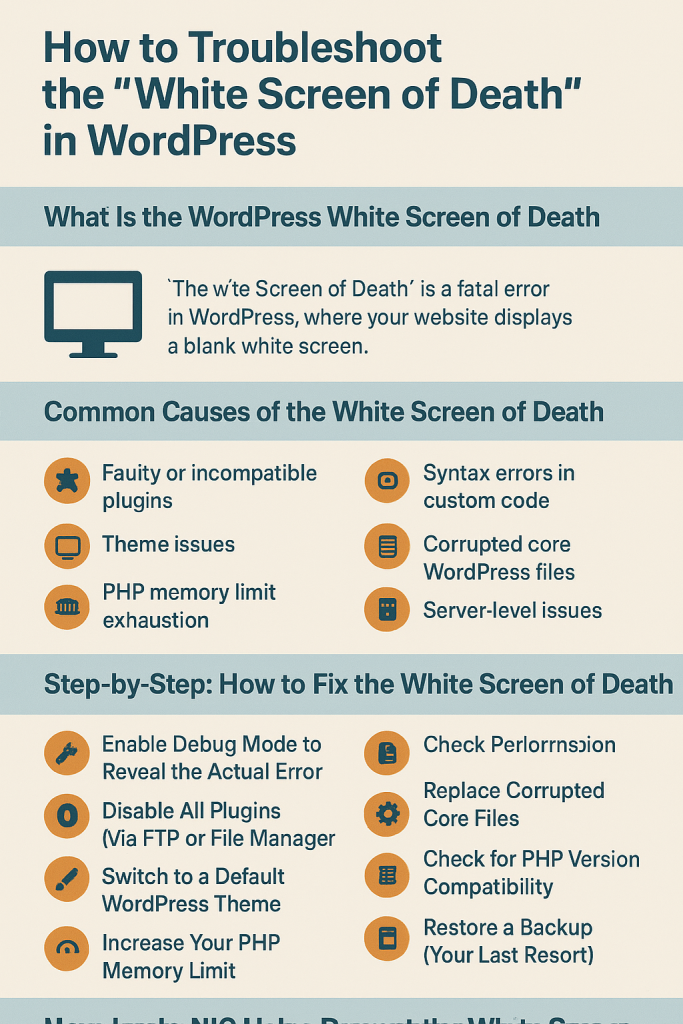
What Is the WordPress White Screen of Death?
The White Screen of Death occurs when WordPress encounters a critical PHP error but cannot display it due to suppressed error reporting. As a result, your website loads a blank white screen.
Typical symptoms include:
Completely blank page on the frontend
Locked-out WordPress admin area
Intermittent availability (some pages white, others normal)
Browser showing no error message
This usually means there’s a fatal issue with your theme, plugin, PHP configuration, or server.
Common Causes of the White Screen of Death
WSOD usually comes from one of these:
✔ Faulty or incompatible plugins
A poorly coded or outdated plugin can break site rendering.
✔ Theme issues
A corrupted theme update or missing file can trigger a fatal error.
✔ PHP memory limit exhaustion
If your site runs out of memory, it may crash silently.
✔ Syntax errors in custom code
A single misplaced bracket can break the entire site.
✔ Corrupted core WordPress files
Especially after incomplete updates.
✔ Server-level issues
Misconfiguration, low resources, or file permission problems.
This is why hosting quality matters—providers like JumboNIC help reduce server-related causes with stable infrastructure, optimized PHP settings, and automated backups.
Step-by-Step: How to Fix the White Screen of Death
Let’s get your site back online.
1. Enable Debug Mode to Reveal the Actual Error
To see what’s happening behind the scenes, turn on debugging.
In wp - config.php, find:
define( ‘WP_DEBUG’, false );
Change it to:
define( ‘WP_DEBUG’, true );
define( ‘WP_DEBUG_LOG’, true );
define( ‘WP_DEBUG_DISPLAY’, false );
Now WordPress will log errors to:/wp-content/debug.log
This usually points directly at the malfunctioning theme or plugin.
2. Disable All Plugins (via FTP or File Manager)
If you cannot access wp-admin, use your hosting file manager.
Steps:
Go to
wp-content/Rename the folder plugins →
plugins_backupVisit your site again
If it loads, the issue is plugin-related.
Then:
Recreate a new empty
pluginsfolderMove plugins back one by one until the faulty one breaks the site again
On JumboNIC, the file manager makes this process simple and fast—no external FTP client required.
3. Switch to a Default WordPress Theme
If plugins are not the issue, test your theme.
Go to
wp-content/themes/Rename your active theme folder
WordPress will automatically fall back to a default theme like Twenty Twenty-Four
If the site loads, your theme is the culprit.
4. Increase Your PHP Memory Limit
WSOD can happen when your site hits its memory limit.
Add this line inside wp - config.php:
define( ‘WP_MEMORY_LIMIT’, ‘256M’ );
You may also adjust it via your hosting control panel.
JumboNIC hosting offers higher default PHP memory limits compared to many shared hosts, reducing the likelihood of memory-based WSOD.
5. Purge Your Cache (Plugin + Server + CDN)
Cached pages can continue serving the white screen even after you fix the problem.
Clear:
WordPress caching plugin (if possible)
JumboNIC server-side cache
CDN cache (Cloudflare, etc.)
After purging, reload your site.
6. Check File Permissions
Incorrect permission settings can block scripts from loading.
Recommended WordPress file permissions:
Files:
644Folders:
755wp – config.php:
600or640
On JumboNIC, you can easily adjust permissions through the file manager.
7. Replace Corrupted Core Files
If a WordPress update failed, some core files may be missing or damaged.
You can safely re-upload a fresh copy of:
/wp-admin//wp-includes/
Do not overwrite wp-content.
8. Check for PHP Version Compatibility
Outdated plugins or themes may not support your PHP version—or vice versa.
You can switch PHP versions directly in your JumboNIC dashboard.
Recommended (2025):
PHP 8.1 or 8.2
Test your site after switching.
9. Restore a Backup (Your Last Resort)
If none of the above works, restoring backup is the safest option.
JumboNIC provides:
Automatic daily backups
One-click restore
Manual backup points
This ensures you can always recover from WSOD, even in the worst-case scenario.
How JumboNIC Helps Prevent the White Screen of Death
Using a strong hosting provider reduces many WSOD triggers.
With JumboNIC, you get:
✔ High PHP memory limits
✔ Stable infrastructure to prevent timeouts
✔ Automatic updates and firewall protection
✔ One-click backups and restores
✔ Error logging and server-side diagnostics
✔ Optimized PHP, NGINX/Apache configurations
A more stable environment = fewer fatal errors.
Conclusion
The WordPress White Screen of Death can be frustrating, but it’s usually fixable within minutes if you follow a structured troubleshooting process.
To summarize:
Enable debugging
Disable plugins
Test with a default theme
Increase PHP memory
Clear all caches
Fix file permissions
Replace core files
Adjust PHP version
Restore from backup
With a dependable hosting provider like JumboNIC backing your site, you gain better performance, stability, and tools to prevent—or quickly resolve—issues like WSOD.