
How to Optimize Your WordPress Database for Better Performance
Featuring JumboNIC
Your WordPress website stores everything in a database — posts, pages, comments, plugin settings, theme options, and more. Over time, this database can become bloated with unnecessary data, which can slow down your site.
A slow website doesn’t just hurt user experience.
It also affects SEO, bounce rate, and conversions.
The good news: optimizing your database is simple, even if you’re not technical.
Let’s walk through how to do it safely.
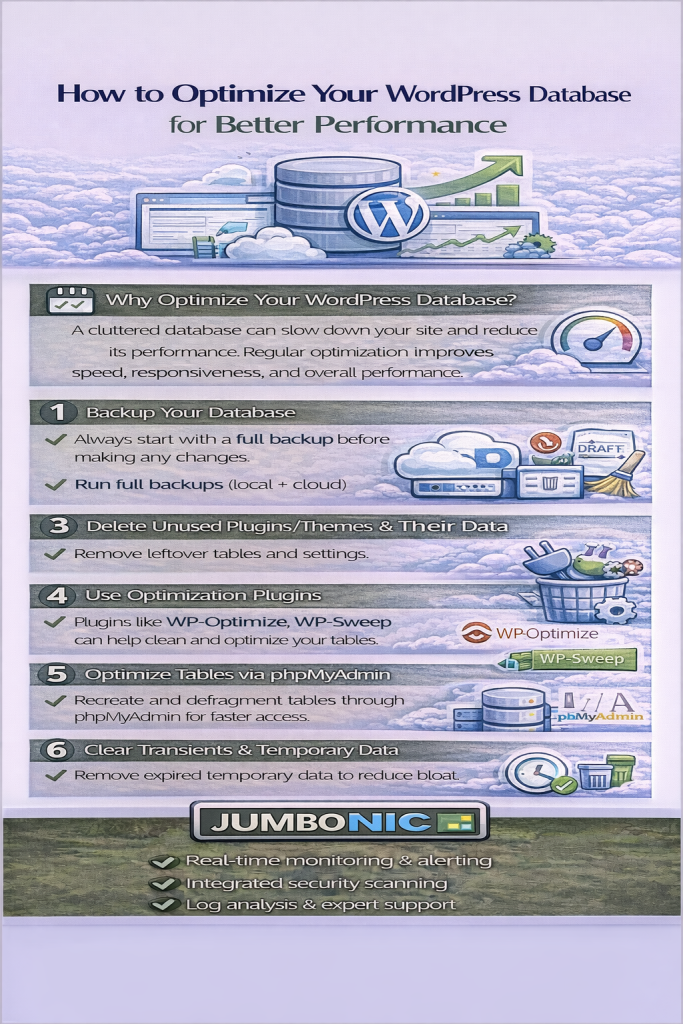
Why Database Optimization Matters
| Problem | What Happens | Result |
|---|---|---|
| Too many post revisions | Larger database size | Slower site loading |
| Spam or trash comments pile up | More data for server to read | Higher server load |
| Expired transients & logs | Unused leftovers | Lower website performance |
| Unused plugins or tables remain | Database becomes disorganized | Longer query times |
Step 1: Always Back Up Before Optimizing
If something goes wrong while cleaning the database, you should be able to restore it.
Easy Backup Options:
UpdraftPlus (plugin)
Jetpack Backup
JumboNIC Hosting Backup Panel (recommended)
On JumboNIC:
Control Panel → Backups → Create Backup
This ensures your site is safe before making changes.
Step 2: Use a Database Optimization Plugin
Recommended Plugin: WP-Optimize
This plugin lets you:
Remove post revisions
Clear trash comments
Remove expired transients
Optimize database tables
How to Use WP-Optimize:
Go to: WordPress Dashboard → Plugins → Add New
Search for WP-Optimize
Install and Activate
Go to: WP-Optimize → Database
Check the items you want to clean
Click Run Optimization
✅ Safe for beginners
✅ Fast and automatic
Step 3: Limit Post Revisions
WordPress saves every edit you make — sometimes dozens of versions.
To prevent storage bloat, limit revisions.
Add this line to wp – config.php:
define('WP_POST_REVISIONS', 5);This keeps your database lean while still allowing history.
Step 4: Delete Unused Plugins and Themes
Even deactivated plugins may leave database tables behind.
Delete them completely:
WordPress Dashboard → Plugins → Installed Plugins → Delete
Then clean the database again using WP-Optimize.
Step 5: Clean Spam and Trash Automatically
In Settings → Discussion:
Turn on Comment Moderation
Enable automatic spam removal
Also install Akismet or Antispam Bee to reduce junk comments.
Less spam = less database clutter.
Step 6: Use a Hosting Provider That Optimizes Performance
Even a well-cleaned database won’t help much if your hosting is slow.
This is why hosting matters.
How JumboNIC Helps:
| JumboNIC Performance Feature | Benefit |
|---|---|
| Optimized database server configurations | Faster query execution |
| SSD or NVMe storage | Faster read or write speed |
| Server caching support | Less load on database |
| One-click staging | Safe testing before cleanups |
| Support assistance | Guidance if unsure |
Your optimization efforts are more effective with optimized hosting.
Pro Tip: Enable Object Caching (If Available)
If your hosting supports Redis or Memcached, enable them.
They store repeated queries in memory → dramatically faster load times.
JumboNIC WordPress Hosting supports server-level caching optimization on select plans.
Final Takeaway
Database optimization isn’t complicated — it just requires routine care.
Simple Maintenance Plan (Repeat Monthly):
Backup your site
Run WP-Optimize
Clear spam & trash
Remove unused plugins or themes
And remember:
A clean database + fast hosting = the best performance.
If you host with JumboNIC, your server is already tuned for WordPress efficiency, which means your site stays fast, secure, and stable.