
How to Harden WordPress Security (Step-by-Step)
WordPress powers over 40% of the web, making it the world’s most popular CMS—and one of the most targeted by attackers. Brute-force attacks, malware injections, plugin vulnerabilities, and DDoS attempts are common threats site owners face daily.
The good news? With the right measures, you can dramatically strengthen your WordPress security and protect your site from most attacks. In this step-by-step guide, you’ll learn practical techniques to harden your WordPress installation—and see how JumboNIC’s secure hosting adds an extra layer of protection from the server side.
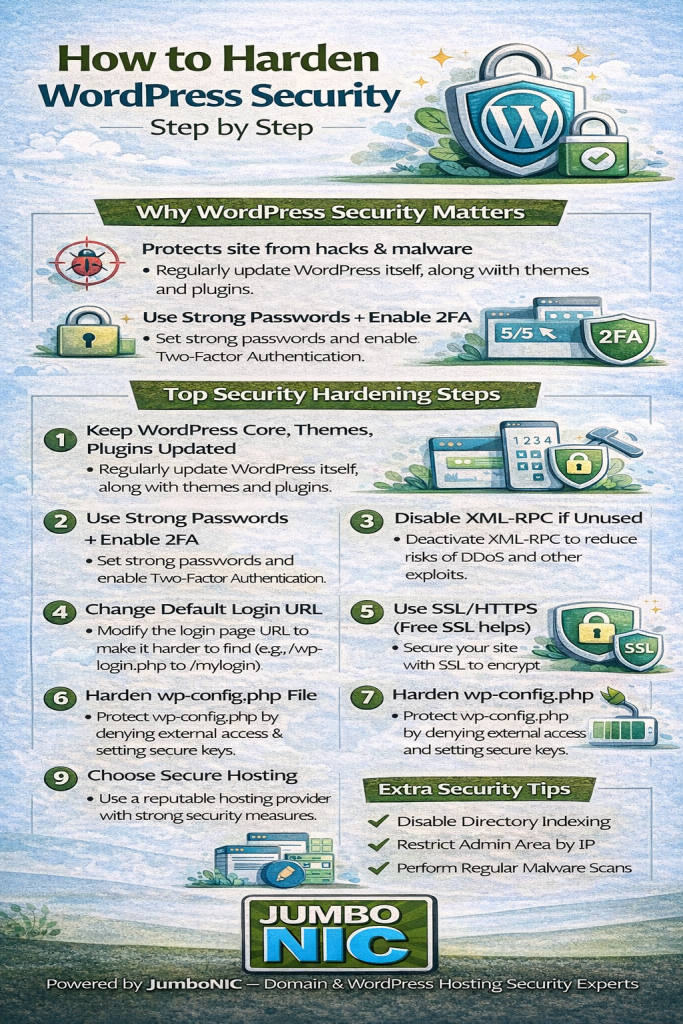
Why WordPress Security Matters
A compromised WordPress site can lead to:
Data theft
Downtime and lost revenue
Search engine blacklisting
Stolen customer information
Defaced pages
Server resource abuse
Damage to brand reputation
Most attacks happen not because WordPress itself is insecure, but because site owners overlook basic security best practices.
Let’s fix that.
Step-by-Step WordPress Hardening Guide
1. Keep WordPress Core, Themes, and Plugins Updated
Vulnerable plugins and outdated themes are the #1 entry point for attackers.
What to Do:
Enable automatic updates for minor WordPress releases
Update plugins weekly
Remove unused themes and plugins
Only install plugins from trusted developers
JumboNIC Advantage:
JumboNIC’s optimized hosting environment ensures smooth and fast updates, reducing the risk of update failures or downtime.
2. Use Strong, Unique Passwords
Weak passwords make brute-force attacks easy.
Best Practices:
Use a password manager
Never reuse passwords
Create long passwords (20+ characters)
Avoid dictionary words and predictable patterns
Add two-factor authentication (2FA) for maximum protection.
3. Limit Login Attempts
WordPress allows unlimited login attempts by default—perfect for brute-force bots.
How to Fix It:
Install a plugin such as:
Limit Login Attempts Reloaded
Wordfence
Login Lockdown
This prevents attackers from trying endless password combinations.
4. Disable XML-RPC (If You Don’t Use It)
XML-RPC is commonly exploited for brute-force attacks and DDoS amplification.
Disable it if unnecessary:
Use a security plugin that blocks XML-RPC
Add firewall rules to block xmlrpc.php requests
5. Change the Default Login URL
Every attacker knows that /wp - login.php is the default login page.
Changing the login URL helps reduce automated attacks immediately.
Plugins like:
WPS Hide Login
iThemes Security
make this easy and effective.
6. Use SSL/HTTPS Everywhere
Encryption protects login data, cookies, and form submissions.
JumboNIC Advantage:
JumboNIC provides free SSL certificates, making it easy to secure your site with HTTPS everywhere.
7. Harden wp – config.php
Your wp - config.php file contains sensitive data like database credentials.
Improve its security by:
Moving it one directory above the public root
Setting strict file permissions
Adding security keys (SALT keys)
Blocking access via .htaccess or NGINX rules
This protects your most critical configuration file.
8. Set Correct File and Directory Permissions
Incorrect permissions allow attackers to modify files or upload malicious scripts.
Recommended Permissions:
Files: 644
Folders: 755
wp – config.php: 600 or 400
Never set permissions to 777—it grants full control to anyone.
9. Enable a Web Application Firewall (WAF)
A WAF blocks:
Brute-force attempts
SQL injection
Cross-site scripting (XSS)
Malicious bots
Known vulnerabilities
Plugins like Wordfence, Sucuri, or Cloudflare can protect your WordPress installation.
10. Use Secure Hosting That Protects You at the Server Level
Server-level security is your first line of defense.
JumboNIC keeps your WordPress site safe with:
Enterprise-level DDoS protection
Advanced firewalls
Malware scanning
Secure, isolated server environments
HTTP/2 and HTTP/3 support
Regular security patching
99.99% uptime
Even the best WordPress security plugins can’t compensate for poor hosting. JumboNIC ensures the foundation of your site is secure.
11. Disable File Editing in WordPress
WordPress allows administrators to edit theme and plugin files directly from the dashboard—dangerous if attackers gain access.
Disable editor by adding this to wp – config.php:
define( 'DISALLOW_FILE_EDIT', true );
This prevents attackers from injecting malicious code through the editor.
12. Regularly Back Up Your Website
Backups are your safety net in case of hacking, corruption, or human error.
Best practices:
Daily backups
Off-site storage (cloud or external server)
Automatic backup schedule
Test restores regularly
JumboNIC offers reliable backup options that make recovery simple and fast.
Bonus: Additional Hardening Tips
Disable directory indexing
Limit REST API access
Enable bot protection
Scan your site monthly for malware
Remove default admin username (“admin”)
Restrict backend access by IP if possible
Implement content security policies (CSP)
Every layer of security reduces your risk of attack.
Conclusion
Securing WordPress doesn’t have to be complicated. By following this step-by-step guide—combined with the robust server-level protection offered by JumboNIC—you can significantly harden your site and protect it against the most common threats.
When your hosting provider delivers:
✔ Strong security
✔ Fast performance
✔ Reliable uptime
✔ Automatic updates
✔ Built-in protection
…your entire WordPress environment becomes much safer and faster.