
🔍 How to Fix the “Website Not Showing in Google” Problem
You launched your website… but when you search for it on Google, it doesn’t show up.
Don’t worry — this is extremely common.
There are five main reasons a website doesn’t appear in Google.
The good news? Each one is simple to fix.
Let’s go step-by-step.
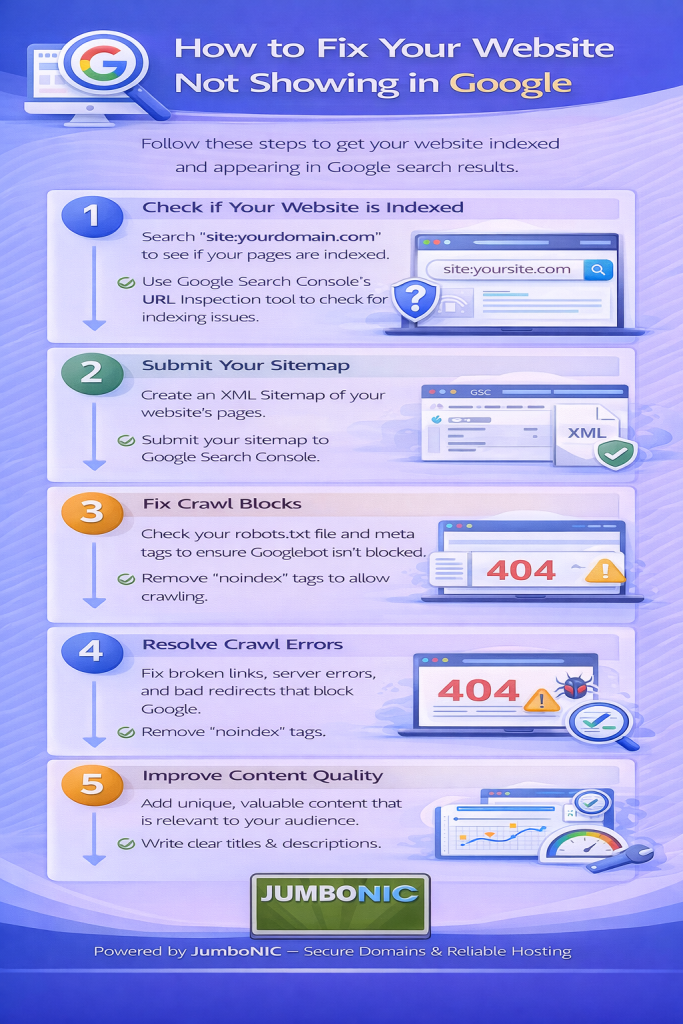
✅ Step 1: Check If Your Website Is Indexed
Google can only show your site if it has indexed it.
Test it:
Go to Google and type:
site:yourwebsite.com
Example:
site:mybusinesswebsite.com
If you see results:
Your site is indexed → Skip to Step 4.
If you see no results:
Your site is not indexed → continue.
✅ Step 2: Add Your Site to Google Search Console
Google Search Console helps Google discover and monitor your website.
Add your domain
Verify ownership using DNS TXT record in your JumboNIC DNS panel
Click Verify
Your site is now connected to Google.
✅ Step 3: Submit Your Sitemap
This tells Google which pages to index.
If you use WordPress:
Your sitemap is probably here:
https://yourwebsite.com/sitemap_index.xml
Submit it:
Go to Search Console
Open Sitemaps
Paste your sitemap URL
Click Submit
This speeds up indexing.
✅ Step 4: Make Sure Your Site Is Not Blocked From Google
Sometimes websites accidentally tell Google NOT to index them.
Check in WordPress:
Go to Settings → Reading
Make sure this is unchecked:
☐ Discourage search engines from indexing this site
- If it’s checked → Google will ignore your website completely.
✅ Step 5: Fix Website Speed + Security Issues
Google avoids ranking websites that are:
Slow
Unsecure
Unreliable
This is where your hosting matters.
JumboNIC helps because it provides:
| Feature | Benefit for Ranking |
|---|---|
| Fast server performance | Google prefers faster-loading websites |
| Free SSL support | Removes “Not Secure” warnings |
| High uptime stability | Google can crawl your site 24/7 |
| Easy WordPress installs | Helps you publish content quickly |
If your hosting is slow, even good content may never rank.
✅ Step 6: Request Indexing (Fastest Trick)
After publishing or updating a page:
Open Google Search Console
Use URL Inspection
Paste your webpage link
Click Request Indexing
This tells Google:
“Hey, look at my site now.”
Your page can appear in search within hours or days, instead of weeks.
✅ Step 7: Start Publishing Helpful Content
Google ranks useful content, not just websites.
You don’t need to write long articles — just answer real questions your audience searches.
Example topics:
“How to choose a domain name”
“Best gifts under $30”
“How to fix slow WiFi”
If your site has 0 helpful content, it will struggle to rank.
🏁 Final Takeaway
If your website is not showing up on Google, the fix is usually simple:
| Step | Action |
|---|---|
| 1 | Check if your site is indexed |
| 2 | Add your site to Google Search Console |
| 3 | Submit your sitemap |
| 4 | Make sure your site isn’t blocking Google |
| 5 | Ensure your hosting is fast and secure (JumboNIC helps here) |
| 6 | Request indexing |
| 7 | Create helpful content |