
How to Enable GZIP Compression in WordPress
Website speed is one of the biggest factors that influence SEO, user experience, and conversion rates. One of the simplest and most effective ways to make your WordPress site load faster is by enabling GZIP compression.
GZIP reduces the size of your website’s files before sending them to a visitor’s browser. Smaller files load faster, use less bandwidth, and make your website feel more responsive—especially on mobile devices.
In this guide, you’ll learn what GZIP compression is, why it matters, and how to enable it easily in WordPress. Plus, you’ll see how JumboNIC’s fast, optimized hosting helps ensure the best compression performance right from the server.
What Is GZIP Compression?
GZIP is a compression technology that reduces the size of your website’s files, including:
HTML
CSS
JavaScript
Text-based assets
When GZIP is enabled:
The server compresses files before sending them.
The user’s browser automatically decompresses them.
Pages load significantly faster without losing quality.
Most modern browsers support GZIP, making it a must-have optimization for any WordPress site.
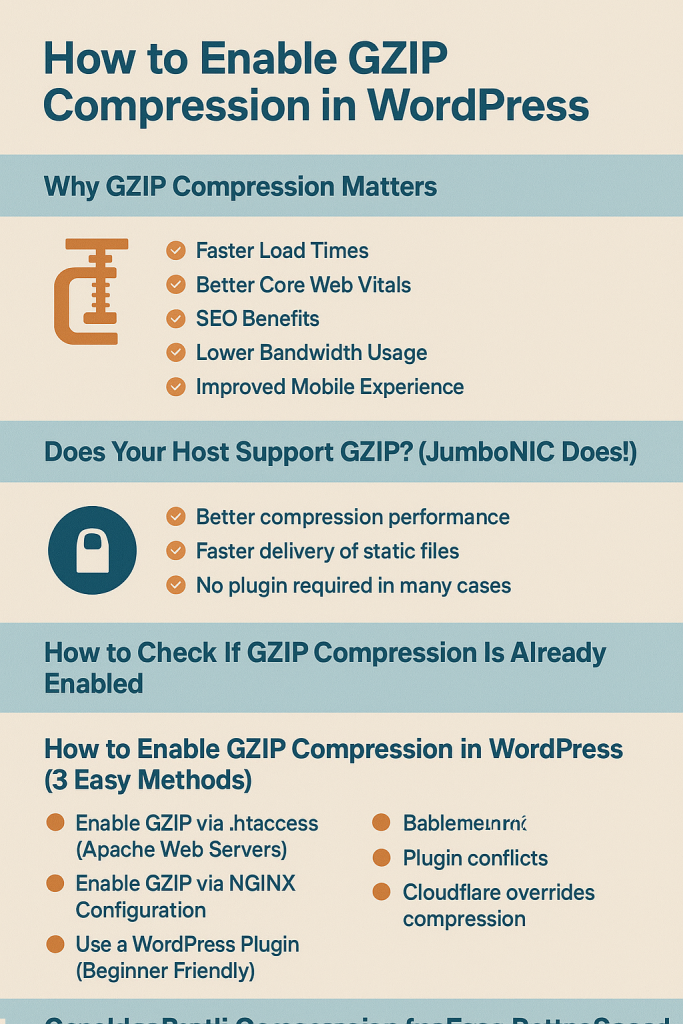
Why GZIP Compression Matters
1. Faster Load Times
GZIP can shrink files by up to 70%, improving performance instantly.
2. Better Core Web Vitals
Smaller files → faster rendering → improved LCP and FID scores.
3. SEO Benefits
Google prioritizes fast websites. GZIP directly contributes to higher rankings.
4. Lower Bandwidth Usage
Your server handles fewer data transfers, reducing load and costs.
5. Improved Mobile Experience
Mobile users especially benefit from compressed files over slow networks.
Does Your Host Support GZIP? (JumboNIC Does!)
Before enabling GZIP manually, check if your hosting provider already supports it.
JumboNIC Advantage:
JumboNIC enables server-level compression, including GZIP and Brotli support, on most hosting plans. This means:
Better compression performance
Faster delivery of static files
No plugin required in many cases
Your site starts fast—right out of the box.
How to Check If GZIP Compression Is Already Enabled
Use any online GZIP testing tool such as:
GIDNetwork
Varvy GZIP Test
CheckGZIPCompression.com
Alternatively, you can check via browser developer tools → Network tab → Response headers.
Look for:
content-encoding: gzip
If you see it, GZIP is already enabled.
How to Enable GZIP Compression in WordPress (3 Easy Methods)
Method 1: Enable GZIP via .htaccess (Apache Web Servers)
If your WordPress site runs on an Apache server (common in shared hosting), simply add this code to your .htaccess file:
<IfModule mod_deflate.c>
AddOutputFilterByType DEFLATE text/html text/plain text/xml text/css text/javascript application/javascript application/json
</IfModule>
This activates GZIP for all major file types.
How to edit .htaccess:
Log in to your hosting control panel or FTP
Locate the file in your site’s root directory
Back it up
Paste the code above
JumboNIC Note:
If you’re using JumboNIC, compression may already be active—making this step unnecessary.
Method 2: Enable GZIP via NGINX Configuration
If your server uses NGINX, add the following to your NGINX config:
gzip on;
gzip_types text/plain text/css application/javascript text/xml application/xml application/json;
gzip_min_length 256;
Restart NGINX after updating:
sudo systemctl restart nginx
Method 3: Use a WordPress Plugin (Beginner Friendly)
If you’re not comfortable editing server files, use a plugin:
Recommended Plugins:
WP Rocket (Premium)
W3 Total Cache
LiteSpeed Cache (if your server uses LiteSpeed)
Inside these plugins, simply toggle GZIP Compression ON.
Plugins also help combine caching, minification, and other optimizations.
Bonus: Consider Brotli Compression for Even Better Speed
Brotli is a newer, more efficient compression method developed by Google.
It often compresses files better than GZIP.
JumboNIC Advantage:
Many JumboNIC hosting plans support Brotli out of the box, offering even faster performance.
If Brotli is available, enable it instead of—or alongside—GZIP.
How GZIP Compression Works With JumboNIC Hosting
JumboNIC is optimized for performance at the server level, ensuring that compression is:
Automatically enabled
Properly configured
Efficient across different file types
Updated with the latest compression technologies
Combined with NVMe SSD storage, global CDN integration, and HTTP/3 support, you get peak speed improvements—even before you install plugins.
Common Problems When Enabling GZIP (And How to Fix Them)
1. GZIP is still not working
Your server may not have compression modules enabled. Contact hosting support.
2. .htaccess rules don’t work
You may be on NGINX or LiteSpeed. Use their respective configurations.
3. Plugin conflicts
Try disabling other caching or optimization plugins temporarily.
4. Cloudflare overrides compression
If using Cloudflare, make sure GZIP/Brotli is enabled there too.
Conclusion
Enabling GZIP compression is one of the simplest ways to speed up your WordPress site. It reduces file size, improves Core Web Vitals, and boosts SEO and user experience. Whether you enable it manually or via a plugin, the benefits are immediate.
When paired with JumboNIC’s fast, optimized hosting environment, you get even greater performance gains:
✔ Server-level GZIP/Brotli compression
✔ NVMe SSD storage
✔ Global CDN support
✔ HTTP/3 and modern protocol performance
✔ Optimized server configuration
Your website becomes faster, more responsive, and more competitive in search results.