
⚡ How to Check Your Website Speed and Improve It
Featuring JumboNIC
Your website’s speed plays a major role in:
User experience
Conversion rates
Google search rankings
If your site loads slowly, visitors will leave — and Google notices.
But the good news is: checking your speed and improving it is simple, even for beginners.
This guide will show you how to test your website speed and easy ways to make it faster, especially when hosted with JumboNIC.
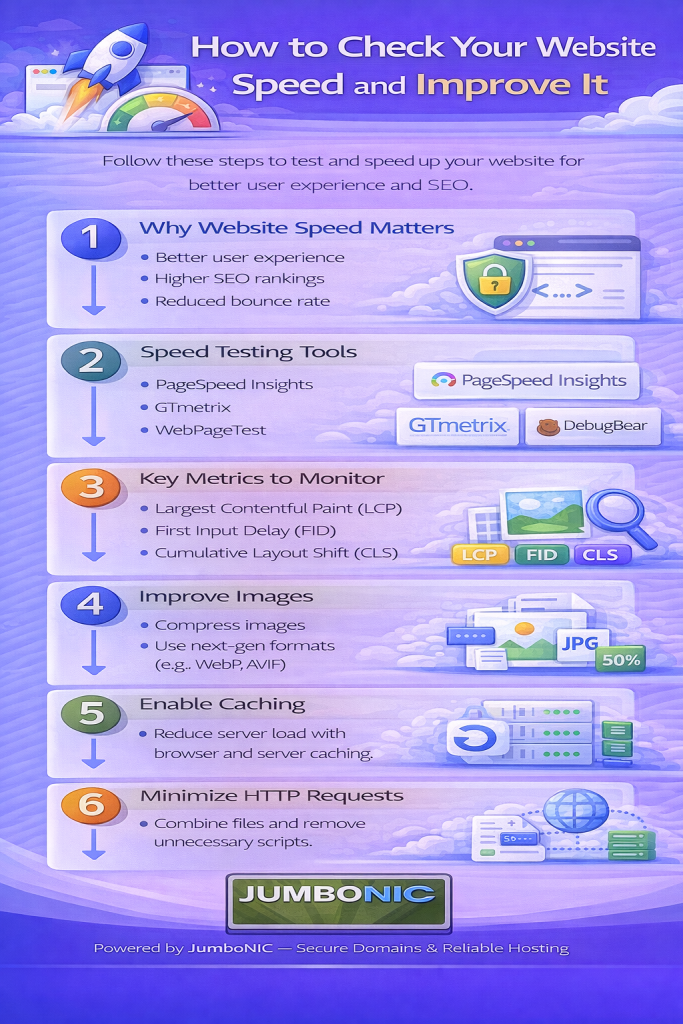
🏁 Step 1: Test Your Website Speed
You can use free online tools to measure your site performance:
| Tool | Link | What It Shows |
|---|---|---|
| Google PageSpeed Insights | https://pagespeed.web.dev | Google performance score + fixes |
| GTmetrix | https://gtmetrix.com | Load time + file breakdown |
| Pingdom Speed Test | https://tools.pingdom.com | Real-world speed test |
How to Test:
Go to one of the testing sites.
Enter your website URL.
Click Analyze.
You’ll get:
Load time
Page size
Performance score
Recommendations to improve
✅ Tip: Test your site from different locations to see performance worldwide.
🧠 What Speed Scores Actually Mean
| Score | Meaning | Result |
|---|---|---|
| 90–100 | Excellent | Fast site 🚀 |
| 70–89 | Good but can improve | Medium performance |
| Below 70 | Needs improvement | Slow site ⚠️ |
Don’t chase 100/100 — focus on real-world speed and user experience.
🔍 What Usually Makes Websites Slow
Most slow-speed issues come from:
Large images
Too many plugins
Slow or overloaded hosting
Unoptimized themes
No caching
No CDN (Content Delivery Network)
The good news?
You can fix most of these without code.
✅ Step 2: Improve Your Website Speed (Easy Fixes)
1. Compress Your Images
Large images = slow site.
Use free tools:
Or WordPress plugins:
Smush
ShortPixel
Imagify
2. Use a Caching Plugin
Caching stores a faster version of your site.
Recommended WordPress plugins:
WP Fastest Cache (simple + effective)
WP Super Cache
W3 Total Cache
Just install → turn ON → done.
3. Delete Plugins You Don’t Need
More plugins = slower website.
Go to:
WordPress Dashboard → Plugins → Delete unused
4. Enable a CDN
A CDN speeds up your site worldwide.
Best free option:
Cloudflare CDN
If your domain is with JumboNIC, updating nameservers is simple.
5. Choose Fast Hosting
Your hosting server is the engine of your website.
No matter how much you optimize, a slow host = slow website.
🏆 Why Hosting Quality Matters Most
Your website speed depends heavily on:
Server performance
Server location
Uptime reliability
Resource availability
This is where JumboNIC makes a big difference:
| JumboNIC Feature | Speed Benefit |
|---|---|
| Optimized high-performance servers | Faster page loading |
| Modern caching & resource handling | Faster WordPress & dynamic sites |
| Stable uptime reliability | No slowdowns during peak hours |
| Server location options | Lower latency for local audiences |
| Scalable hosting plans | Smooth performance as your site grows |
With JumboNIC, your website doesn’t just work —
it loads fast.
🏁 Step 3: Re-Test After Making Improvements
Run your site again in:
PageSpeed Insights
GTmetrix
Pingdom
You should see:
Higher performance scores 📈
Faster load time ⏱️
Smaller page size 💾
Even small improvements lead to big differences in user experience.
🎉 Final Takeaway
You don’t need to be a developer to check or improve your website speed.
Just remember:
Test your speed regularly
Optimize images
Use caching
Limit plugins
Use a CDN
And most importantly → Use fast hosting
If your hosting is slow, your website will stay slow — no matter what you do.
JumboNIC provides:
✔ Fast servers
✔ Reliable performance
✔ Easy WordPress setup
✔ Friendly support
A faster website means:
Better Google rankings
Happier visitors
More conversions