
How to Fix Common WordPress Errors (500, 404, Database Connection) — Featuring JumboNIC
WordPress powers millions of websites worldwide, but even the most experienced site owners occasionally run into errors. The most common WordPress issues—500 Internal Server Error, 404 Not Found, and Database Connection errors—can be alarming, especially when your website goes down or visitors see a broken page.
This guide explains why these errors happen, how to troubleshoot and fix them, and how JumboNIC hosting can help prevent these issues from occurring in the first place.
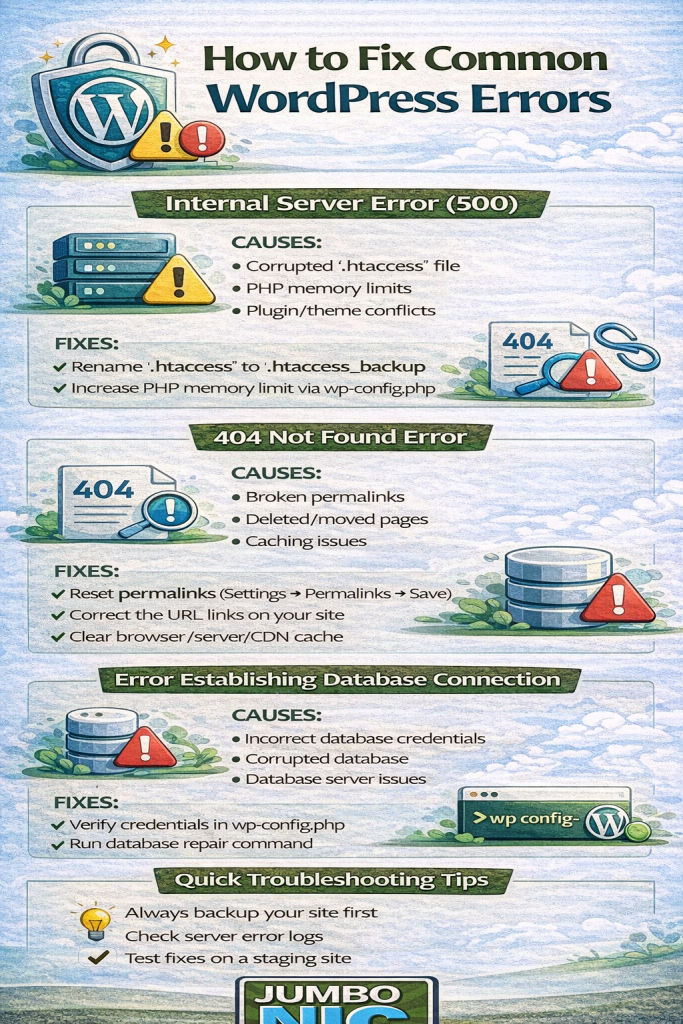
1. 500 Internal Server Error
The 500 Internal Server Error is one of the most dreaded WordPress problems. It indicates a server-side issue, but doesn’t provide details.
Common Causes
Corrupted
.htaccessfilePlugin or theme conflicts
PHP memory limit exhaustion
Server misconfiguration
How to Fix
Check the .htaccess file:
Connect via FTP or JumboNIC file manager
Rename
.htaccessto.htaccess_backupTry reloading the site
If it works, go to WordPress Settings → Permalinks and click Save to regenerate
.htaccess
Increase PHP memory limit:
Add the following towp - config.php:define('WP_MEMORY_LIMIT', '256M');
Deactivate plugins and themes:
Rename
pluginsfolder toplugins_backupRename your active theme folder
Reload site; re-enable plugins/themes one by one to find the culprit
Check server error logs:
JumboNIC hosting provides access to server logs via the control panel for quick diagnostics.
2. 404 Not Found Error
A 404 error occurs when a page cannot be found. It can happen for posts, pages, products, or media.
Common Causes
Broken permalinks
Deleted or moved pages
Caching issues
How to Fix
Reset permalinks:
Go to Settings → Permalinks
Click Save Changes without altering anything
Check page URLs:
Ensure your links point to the correct page
Correct any typos or outdated URLs
Clear cache:
Purge WordPress cache
Purge server-side cache (JumboNIC provides this via the hosting panel)
Purge CDN cache if using one
Restore deleted pages if needed:
Check backups via JumboNIC’s automated backup system
3. Database Connection Error
When WordPress cannot connect to its database, it shows “Error Establishing a Database Connection.” Your site will be completely inaccessible.
Common Causes
Wrong database credentials
Corrupted database
Server downtime or overload
Exceeded database quota
How to Fix
Check wp – config.php:
Ensure the following values are correct:DB_NAME
DB_USER
DB_PASSWORD
DB_HOST
- Repair the database:
Add this line towp - config.php:define('WP_ALLOW_REPAIR', true);Then visit:
https://yourdomain.com/wp-admin/maint/repair.php
Check database server status:
JumboNIC hosting provides a status panel to verify MySQL or MariaDB is running
Restart the database if needed
Restore a backup:
Use JumboNIC’s daily backups to restore a healthy database if corruption persists
Proactive Measures to Avoid Common WordPress Errors
Regular backups:
Daily backups with one-click restore (like JumboNIC provides) reduce downtime.Staging environment:
Test updates in a staging site before going live.Update WordPress, plugins, and themes:
Outdated software often causes 500 and database errors.Monitor server resources:
High traffic or resource exhaustion can cause intermittent 500 errors; JumboNIC hosting provides monitoring tools.Use quality plugins and themes:
Avoid poorly coded plugins or themes that conflict with WordPress core.
Why JumboNIC Hosting Helps Prevent Errors
JumboNIC’s hosting platform is optimized for WordPress reliability:
NVMe SSD servers for faster database queries
Built-in caching for faster page loads and reduced server load
Daily automated backups with one-click restore
Easy staging environments for safe updates
High PHP memory limits and HTTP/3 support
Access to server logs for faster troubleshooting
Using JumboNIC reduces the likelihood of common errors and ensures your website can recover quickly if something goes wrong.
Conclusion
Common WordPress errors like 500 Internal Server Error, 404 Not Found, and Database Connection Errors can be frustrating—but they’re usually fixable with the right approach.
By following these steps:
Check and repair
.htaccessReset permalinks
Verify database credentials and repair databases
Test updates in staging
Use robust hosting like JumboNIC
…you can maintain a fast, secure, and reliable WordPress site.
With JumboNIC’s performance-optimized, secure hosting, troubleshooting becomes faster, safer, and far less stressful—keeping your website online and your visitors happy.