
How to Use WP-CLI to Manage Your WordPress Site
Managing a WordPress site through the browser works well for beginners—but if you’re a developer, power user, or site administrator, you need faster, more reliable tools. That’s where WP-CLI, the WordPress Command Line Interface, becomes a game-changer.
WP-CLI lets you manage your WordPress installation directly from the terminal, giving you speed, automation, and full control without ever opening wp-admin.
In this guide, you’ll learn how WP-CLI works, how to use it effectively, and how hosting providers like JumboNIC make WP-CLI faster, more stable, and easier to use.
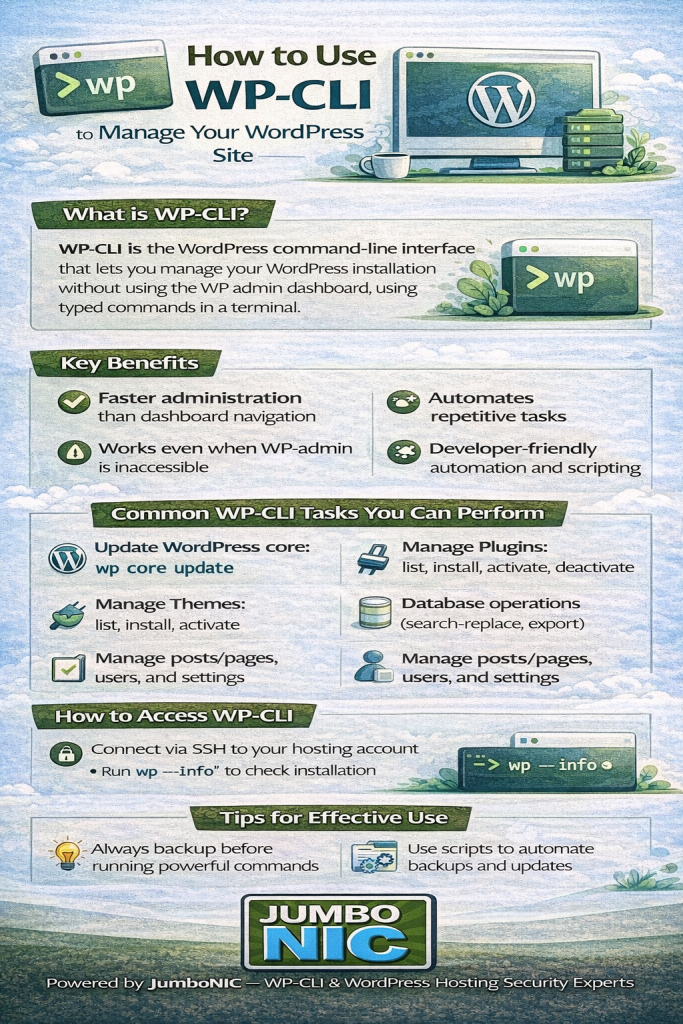
What Is WP-CLI?
WP-CLI is a command-line tool that lets you perform administrative WordPress tasks without accessing the dashboard.
With WP-CLI, you can:
Update plugins and themes
Create backups
Manage users
Run database operations
Generate posts or pages
Install and configure WordPress
Perform migrations
Clear caches
Fix broken websites
If you manage multiple WordPress sites, WP-CLI can save you hours every week.
Why WP-CLI Is So Useful
1. It’s Fast
Commands run instantly—no loading screens, no clicking through menus.
2. It Automates Tasks
You can create scripts to automate repetitive actions like updates or backups.
3. It Works Even When wp-admin Is Down
If your site breaks after a plugin update, WP-CLI can fix it even when the dashboard is unreachable.
4. It’s Developer-Friendly
WP-CLI integrates easily with deployment tools, CI/CD pipelines, and advanced workflows.
How JumboNIC Enhances the WP-CLI Experience
WP-CLI runs best on strong, optimized hosting.
JumboNIC provides the ideal environment by offering:
✔ Full WP-CLI Support (Pre-installed on many plans)
No manual setup needed—just SSH in and start managing.
✔ Fast NVMe SSD Storage
Database queries and WP-CLI operations run lightning fast.
✔ SSH Access
Essential for WP-CLI usage, included on developer-friendly hosting plans.
✔ Optimized Server Configuration
PHP, MySQL, and caching systems are tuned for maximum performance.
✔ Staging & Backup Tools
Works alongside WP-CLI for seamless workflows.
With JumboNIC, WP-CLI commands execute smoothly, making large-site management efficient and reliable.
How to Access WP-CLI
Before using WP-CLI, you need SSH access to your hosting account.
1. Open your terminal (macOS/Linux)
or use a tool like PuTTY on Windows.
2. Connect via SSH:
ssh username@yourserver.com
3. Check if WP-CLI is installed:
wp --info
Essential WP-CLI Commands Every User Should Know
Below are the most commonly used commands, with explanations and examples.
1. Update WordPress Core
Check for updates:
wp core check-update
Update to the latest version:
wp core update
2. Manage Plugins
List all installed plugins:
wp plugin list
Update all plugins:
wp plugin update --all
Deactivate a problematic plugin:
wp plugin deactivate plugin-name
Install a plugin:
wp plugin install plugin-name --activate
3. Manage Themes
List installed themes:
wp theme list
Install and activate a theme:
wp theme install astra --activate
Update all themes:
wp theme update --all
4. Manage Users
Create a new user:
wp user create newuser email@example.com --role=editor
Change user role:
wp user set-role username administrator
List all users:
wp user list
5. Control the Database
Optimize the database:
wp db optimize
Export the database:
wp db export backup.sql
Import a database file:
wp db import backup.sql
Run a raw SQL query:
wp db query "SHOW TABLES;"
6. Manage Posts and Pages
Create a new post:
wp post create --post_title="My New Post" --post_status=publish
wp post delete 123
wp search-replace 'http://oldsite.com' 'https://newsite.com'
7. Fix Common WordPress Errors
Clear all caches:
wp cache flush
Deactivate all plugins at once:
wp plugin deactivate --all
Reinstall WordPress core files:
wp core download --force
When your site breaks, WP-CLI is your emergency toolkit.
Advanced WP-CLI Usage
WP-CLI becomes even more powerful when used for:
Automation Scripts
Run scheduled updates with cron jobs.
Deployment Workflows
Sync staging → production environments.
Multisite Management
Manage an entire WordPress network from one command.
Bulk Operations
Great for agencies managing dozens of client sites.
With JumboNIC’s reliable hosting and SSH access, these workflows are smooth and efficient.
Best Practices When Using WP-CLI
Always create a backup before making bulk changes
Run commands in staging before applying them live
Use
--dry-runwhen available to preview changesKeep WP-CLI updated
Use secure SSH keys instead of passwords
Test commands with non-destructive operations first
WP-CLI is powerful—use it wisely.
Conclusion
WP-CLI is one of the most effective tools for managing WordPress. Whether you run a single website or maintain dozens, WP-CLI gives you:
Faster workflows
Better control
Automated processes
More efficient site management
Pairing WP-CLI with JumboNIC’s developer-friendly hosting gives you the ideal environment for fast, secure, and professional WordPress administration. With features like SSH access, NVMe SSDs, and strong server-level security, JumboNIC ensures you get the most out of WP-CLI’s capabilities.