
📈 How to Use Google Search Console to Improve Your Rankings
Featuring JumboNIC
If you want your website to rank higher on Google, you need data — not guesses.
Google Search Console (GSC) provides insights into how your website performs in search results, what keywords drive traffic, and which pages need improvement.
This guide explains step-by-step how to use GSC and how JumboNIC hosting can make your website perform better for SEO.
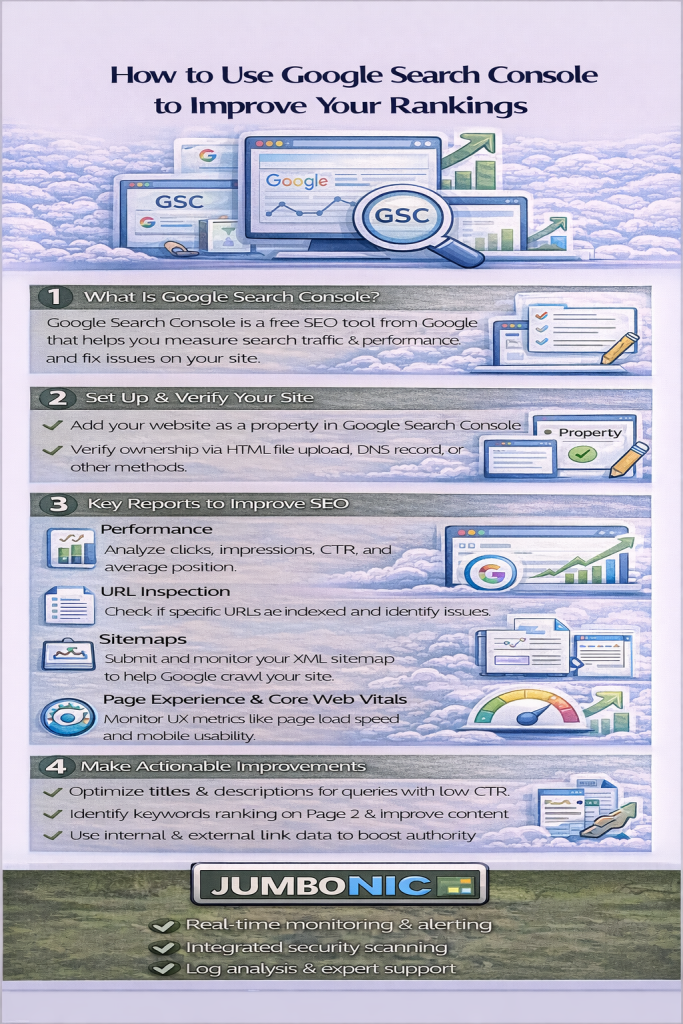
🧠 Why Google Search Console Matters
With GSC, you can:
See which keywords bring traffic
Track your click-through rate (CTR) and impressions
Identify pages with errors or indexing issues
Monitor backlinks and internal linking
Improve mobile usability and Core Web Vitals
Google Search Console helps you make data-driven SEO decisions instead of guessing.
🟦 Step 1: Add Your Website to Google Search Console
Click “Add Property”
Enter your website URL (choose exact match: https:// vs http://)
Verify ownership:
Upload an HTML file to your JumboNIC hosting
OR add a TXT record to your domain’s DNS
OR use Google Analytics / Site Kit plugin for WordPress
✅ Once verified, your site is ready to track.
🟩 Step 2: Submit a Sitemap
A sitemap helps Google index your pages faster.
Create a sitemap (WordPress plugins like Yoast SEO or Rank Math do this automatically)
Go to Index → Sitemaps in GSC
Enter your sitemap URL (e.g.,
https://yourwebsite.com/sitemap.xml)Click Submit
Tip: JumboNIC hosting ensures your sitemap loads quickly and reliably for Google bots.
🟦 Step 3: Monitor Performance Reports
Go to Performance → Search Results to see:
Clicks → How many visitors came from Google
Impressions → How often your page appeared in search results
CTR → Click-through rate for each page/keyword
Average Position → How high your pages rank
Use this data to:
Optimize titles & meta descriptions
Focus on high-impression but low-CTR pages
Update underperforming content
🟩 Step 4: Check for Indexing Issues
Go to Coverage to see:
Pages Indexed
Pages with Errors
Pages Excluded (not in Google index)
✅ Fix errors like 404s, server errors, or blocked pages.
✅ JumboNIC hosting ensures your server responds fast, preventing crawl errors due to slow loading.
🟦 Step 5: Optimize for Mobile & Core Web Vitals
Google prioritizes mobile-friendly and fast-loading sites:
Go to Core Web Vitals and Mobile Usability in GSC
Identify issues like:
Slow loading times
Mobile responsiveness problems
Layout shifts
Tip: Hosting with JumboNIC improves speed and uptime, which directly improves these metrics.
🟩 Step 6: Use URL Inspection Tool
Enter a page URL in GSC
Check if Google can crawl and index it properly
Request indexing after content updates or fixes
This helps your pages appear faster in search results.
🏆 How JumboNIC Hosting Helps SEO & GSC Performance
| JumboNIC Feature | Benefit for GSC & SEO |
|---|---|
| Fast server response | Pages load faster → better Core Web Vitals |
| High uptime | Fewer server errors → better indexing |
| Easy WordPress hosting | Smooth plugin & sitemap integration |
| Reliable DNS | Fast Googlebot access to your pages |
🎯 Quick GSC SEO Checklist
Verify your website in GSC
Submit your sitemap
Monitor Performance Reports
Fix Coverage Errors
Optimize Core Web Vitals & Mobile Usability
Inspect and request indexing for updated pages
Use insights to update content & meta tags regularly
🎉 Final Takeaway
Google Search Console is a must-have tool for SEO.
By regularly checking GSC reports and combining it with fast, reliable hosting from JumboNIC, you can:
Improve rankings
Drive more traffic
Enhance user experience
Avoid indexing issues
Your website will not only perform better for visitors but also signal Google that it’s trustworthy and optimized.