
💾 Why Backups Are Critical and How to Set Them Up
Imagine this scenario:
Your website suddenly crashes. Hackers strike. A plugin breaks everything.
Without a backup, you could lose everything — content, customer data, and hard work.
That’s why backups are not optional. They’re essential for every website owner. In this guide, you’ll learn why backups matter and how to set them up easily, especially with JumboNIC hosting.
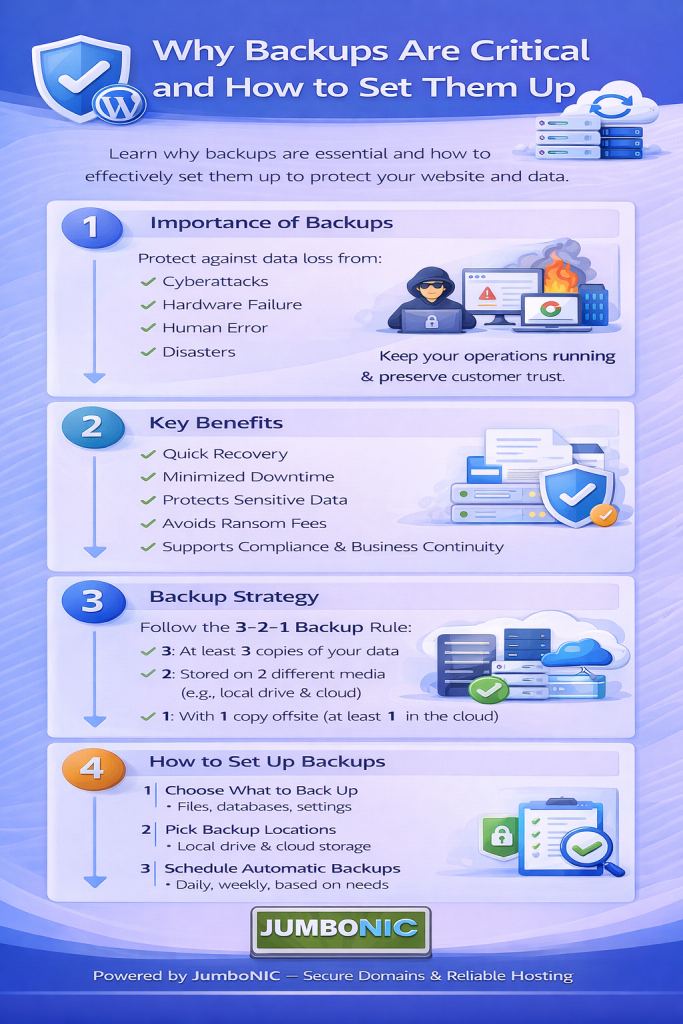
🧠 Why Backups Are Critical
| Risk | Impact Without Backup |
|---|---|
| Hackers / Malware | Site could be permanently damaged |
| Human Error | Accidental deletion of files or pages |
| Plugin / Theme Failure | Broken website or errors |
| Hosting Failure | Rare, but possible — data loss |
Bottom line:
Backups give you peace of mind. You can restore your website in minutes instead of losing hours, days, or even years of work.
⏱️ How Often Should You Back Up?
It depends on how often you update your site:
Daily backups: Ideal for active blogs, eCommerce, or websites with frequent updates
Weekly backups: Good for smaller sites with fewer updates
Before major changes: Always back up before installing new plugins or themes
✅ How to Set Up Backups (Beginner-Friendly)
Option 1: Using JumboNIC Hosting (Recommended)
Many JumboNIC hosting plans include automated backups. Here’s how to set them up:
Log in to your JumboNIC hosting control panel
Navigate to Backup / Backup Wizard
Enable automated backups
Choose frequency (daily, weekly)
Select full backup for all files and databases
Save your settings ✅
Now your website is automatically backed up without any extra work.
Option 2: Using WordPress Plugins
For WordPress users, there are free plugins to automate backups:
UpdraftPlus
Schedule daily or weekly backups
Store backups in cloud storage (Google Drive, Dropbox)
All-in-One WP Migration
Easy backup and restore process
BackWPup
Free cloud storage integration
Steps (using UpdraftPlus):
Install and activate the plugin
Go to Settings → UpdraftPlus Backups
Set backup schedule for files and database
Choose cloud storage if desired
Click Save Changes
Your site will now back up automatically.
🧩 Where to Store Your Backups
Never keep backups only on your hosting server. Store them in multiple locations:
Cloud storage (Google Drive, Dropbox)
Local computer
External hard drive
This ensures you can restore even if your hosting fails.
🏆 Why JumboNIC Makes Backups Easy
| JumboNIC Feature | Benefit |
|---|---|
| Automated backup options | No manual work required |
| One-click restore | Restore your website in minutes |
| Secure storage | Protects backups from hackers |
| Expert support | Assistance if you need to restore your website |
With JumboNIC, backups are reliable, simple, and stress-free — perfect for beginners and business owners.
🎯 Quick Backup Checklist
Enable automated backups
Store backups in multiple locations
Backup before updates (plugins, themes, WordPress core)
Test a restore once in a while
Use JumboNIC hosting for reliability and easy management
🎉 Final Takeaway
Backups are not optional — they’re your website’s safety net.
With JumboNIC, you can:
Automate backups
Restore your site in minutes
Protect your content and business
Don’t wait for disaster to happen — set up your backups today.