
📧 How to Set Up Business Email With Your Domain
Using a professional email like: yourname@yourbusiness.com
looks more trustworthy than using free email services like Gmail or Yahoo.
Customers take your brand more seriously, and it improves your business identity.
The good news?
If your domain is registered through JumboNIC, setting up business email is simple.
This guide will show you exactly how to do it — no technical experience needed.
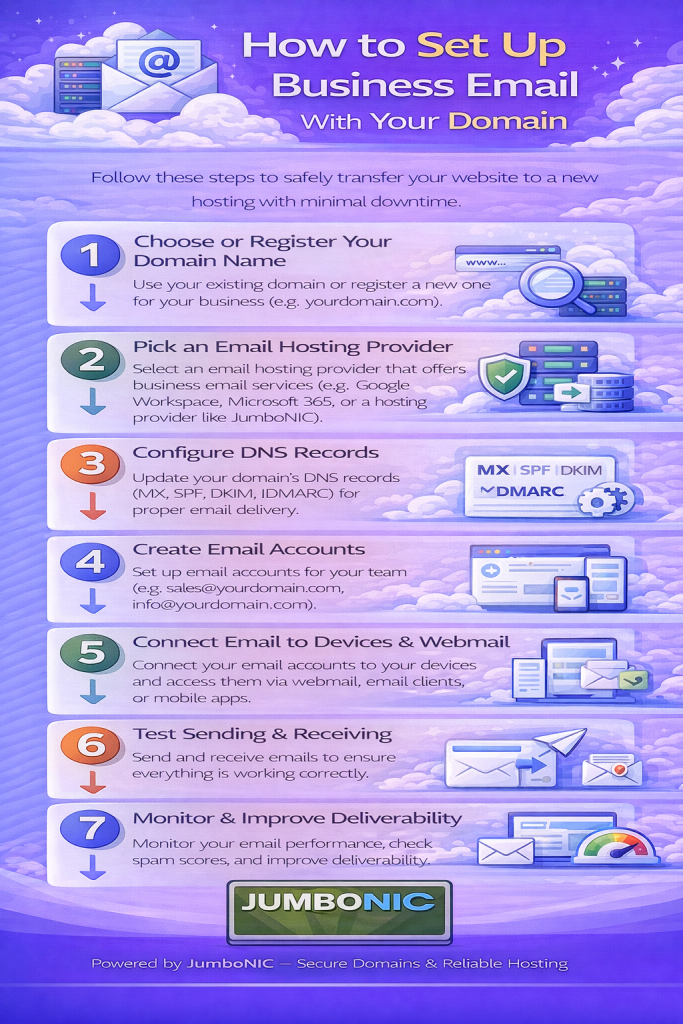
✅ Why Use a Business Email?
| Free Gmail Address | Business Email Address |
|---|---|
| yourbusiness@gmail.com |
A custom domain email helps in:
Building credibility
Improving customer trust
Looking more professional in proposals, social media, and marketing
🟦 Step 1: Log in to Your JumboNIC Account
Go to the JumboNIC website
Sign in to your client dashboard
Select Domains
Click the domain you want to use for your business email
This opens your domain management panel.
🟩 Step 2: Choose Your Email Hosting Method
You have two options:
Option A: Use Your Web Hosting Email (Free with Most Hosting Plans)
If your hosting provider includes email, you can create business email for free.
Look for: cPanel → Email Accounts
Then create your email there (explained in Step 3).
Option B: Use Premium Business Email Services (Best Reliability)
For stronger spam protection + syncing on all devices:
| Service | Example Email | Notes |
|---|---|---|
| cPanel Email (free) | name@yourdomain.com | Good for most cases |
| Microsoft 365 Email | name@yourdomain.com | Very professional |
| Google Workspace | name@yourdomain.com | Best mobile syncing |
If you’re not sure → Start with the free cPanel email.
🟦 Step 3: Create the Email Account (Using cPanel)
Log in to your hosting control panel (cPanel)
Go to Email Accounts
Click Create
Enter your email name: sales@yourdomain.com
support@yourdomain.com
info@yourdomain.comSet a secure password
Click Create Email
You now have a working business email.
🟩 Step 4: Connect Your Email to Your Devices
You can access your email in two ways:
Webmail (Browser)
Go to: yourdomain.com/webmail
Enter your full email + password → Inbox appears.
Phone or Desktop Apps
You can add your new email to:
Gmail App
Outlook
iPhone Mail
Samsung Email
Windows Mail
Look for the IMAP Email Settings in cPanel:
Mail Server: mail.yourdomain.com
Username: your full email address
Password: your password
Copy and paste — you’re done.
🔒 Step 5: (Recommended) Improve Email Deliverability
To avoid your emails going to spam, enable:
| Setting | Where to Find | Purpose |
|---|---|---|
| SPF Record | DNS Manager | Verifies your sending server |
| DKIM Record | Email Authentication in cPanel | Prevents email spoofing |
| DMARC Record | DNS Manager | Protects your domain identity |
If this sounds confusing →
Just ask JumboNIC support and they will configure it for you.
🏆 Why Use JumboNIC for Business Email?
| JumboNIC Advantage | Benefit to You |
|---|---|
| Easy domain & hosting management | Everything in one place |
| Works smoothly with cPanel email | Quick setup for beginners |
| Supports Google Workspace & Microsoft 365 | Flexible professional options |
| Friendly support | Help available if you need it |
With JumboNIC, setting up your business identity is quick, secure, and hassle-free.
🎉 You’re All Set!
You now have:
✅ A professional branded email
✅ Working inbox access
✅ The ability to send & receive business communication
Your business now looks more credible and trustworthy.